



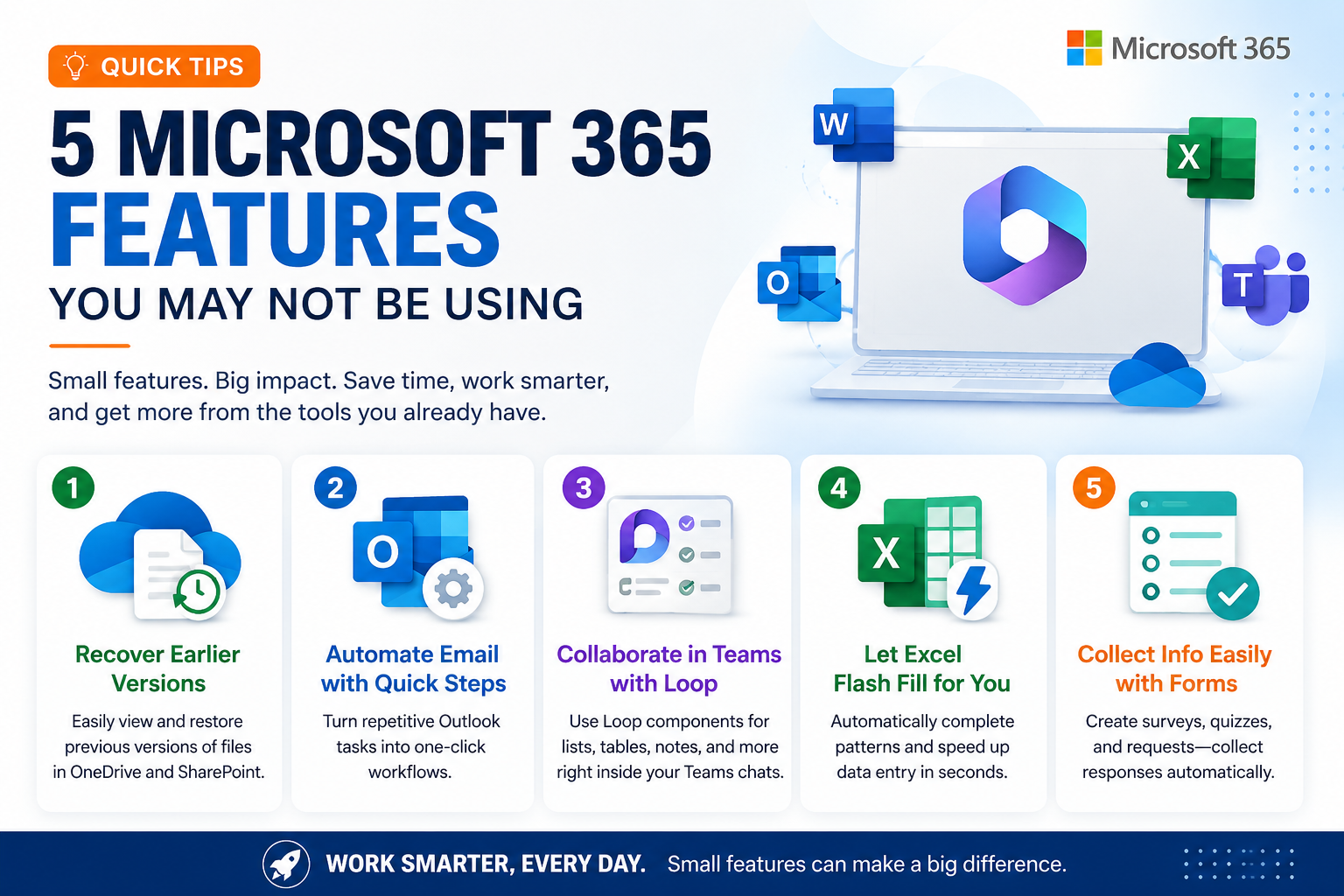
Quick Tip: 5 Microsoft 365 Features You May Not Be Using
Most organizations use Microsoft 365 every day, but many employees only scratch the surface of what is already included.
Beyond Outlook, Word, Excel, and Teams, Microsoft 365 contains dozens of small features that can save time, reduce repetitive work, and make collaboration easier.
Here are five worth trying.
1. Recover Earlier Versions of Files in OneDrive and SharePoint
Accidentally overwrite a spreadsheet or make changes to a document you wish you could undo?
Files stored in OneDrive and SharePoint typically maintain a version history, allowing you to open or restore an earlier version without asking someone to find a backup.
Try it:
Right-click a file in OneDrive or SharePoint and look for Version History.
You can review previous versions and restore the one you need.
This is especially useful for shared Excel files, proposals, policies, and documents that multiple people edit.
Quick tip: Version history is another good reason to keep important business documents in Microsoft 365 rather than only on a local computer.
2. Turn Repetitive Outlook Tasks Into Quick Steps
If you regularly perform the same combination of actions in Outlook, Quick Steps can reduce several clicks to one.
For example, you could create a Quick Step that:
- marks a message as read
- moves it into a particular folder
- forwards it to a colleague
- assigns a category
Instead of repeating those steps manually every time, one click handles the workflow.
Try it:
In Outlook, look for Quick Steps and create one around an email task you perform repeatedly.
Even saving 15 or 20 seconds on something you do dozens of times each week can add up quickly.
3. Collaborate Inside Teams With Loop Components
Microsoft Teams can do more than send messages and host meetings.
Loop components allow several people to work on the same small piece of information directly inside a Teams conversation.
You can create things such as:
- checklists
- task lists
- tables
- notes
- status updates
Everyone can edit the information without sending multiple versions of a document back and forth.
Try it:
The next time your team is making a short list or coordinating several action items in Teams, use a Loop component instead of creating another attachment.
It can be especially handy for meeting follow-ups and small projects.
4. Let Excel Fill In Repetitive Information for You
Excel’s Flash Fill can recognize patterns in your data and automatically complete repetitive formatting or data-entry tasks.
Suppose a spreadsheet contains full names and you need separate first-name and last-name columns. Enter a couple of examples and Excel can often recognize what you are trying to do and complete the rest.
It can also help with tasks such as:
- changing name formats
- separating information
- combining text
- standardizing phone numbers
- extracting parts of codes or IDs
Try it:
Enter one or two examples beside your existing data and use Flash Fill to see whether Excel recognizes the pattern.
For occasional spreadsheet cleanup, it can save a surprising amount of time.
5. Use Microsoft Forms Instead of Emailing Questions Around
Need to collect information from employees, customers, or a project team?
Instead of emailing everyone and manually combining their responses, try Microsoft Forms.
Forms can be used for:
- employee surveys
- event registrations
- internal requests
- customer feedback
- quizzes
- simple questionnaires
- project updates
Responses are collected automatically and can be exported to Excel for further analysis.
Try it:
The next time you are about to send an email asking five people the same set of questions, consider creating a Microsoft Form instead.
You’ll spend less time chasing replies and organizing the answers.
Small Features Can Produce Big Productivity Gains
Getting more value from Microsoft 365 does not always require purchasing another application or launching a major technology project.
Sometimes the biggest improvements come from learning how to use the tools you already have.
Pick one feature from this list and try it this week.
If it saves five minutes today, imagine how much time it could save across an entire organization over the course of a year.
Microsoft 365 features and availability can vary depending on your organization’s subscription, configuration, and administrator settings.